Lesson 5: Rules over different periods
Introduction
In Lesson 4, we learned how to use period rules to set limits based on strict calendar time periods, such as one day, week, or month. Sometimes, the limits are not as clearly based on the calendar. Instead, these limits are active over time windows of a fixed length, that move or "roll" across the schedule. For example:
-
An employee must work at most five days in any ten-day period.
-
An employee must have at minimum two consecutive days off in any two weeks.
-
An employee must work an average of 40 hours per week in any four-week period.
In this lesson, we will learn how to use rolling window rules in contracts to handle these types of limits.
Rolling window specification
Unlike period rules, rolling windows are not tied to one calendar period. Instead, they define a window of time through a type and size, and they are active for all such windows in the entire schedule. This leads to the name "rolling window": you can think of it as a rolling filter of a set size, that starts at the beginning of the schedule and slides along.
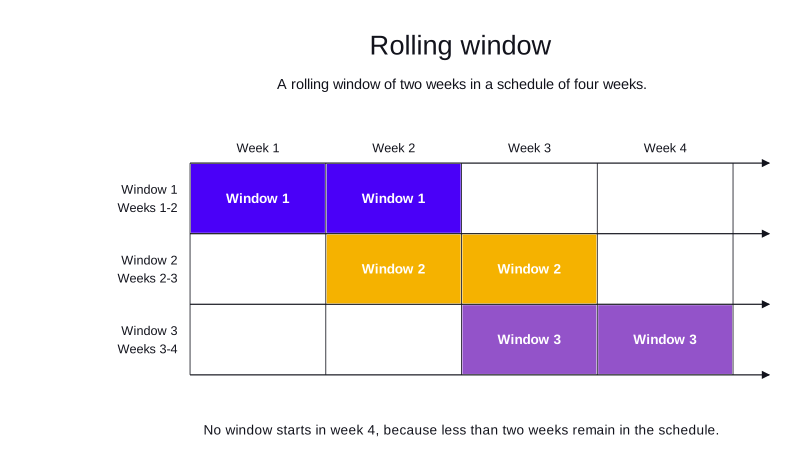
Consider a schedule with a planning period of four weeks. A rolling window of size two weeks will cover the following time periods concurrently:
-
starts at the beginning of the schedule and covers the first two weeks
-
starts at the beginning of the second week and covers the second and third weeks
-
starts at the beginning of the third week and covers the third and fourth weeks.
| No window will start at the beginning of week four, because there is no two-week period left to cover. It is active for all complete two-week periods in the schedule. |
There are four types of rolling windows: HOURLY, DAILY, WEEKLY, and MONTHLY.
-
HOURLYrolling windows start with the start of every assigned shift, and they span the number of hours specified insize. The model explicitly doesn’t calculate them for periods when the employee has no assigned shifts, because there is simply nothing there to count. -
DAILYrolling windows start at the beginning of every calendar day, and they span the number of days specified insize, ending at 23:59:59.999 on the last day. They start with every day in the schedule, regardless of whether the employee is assigned shifts or not. -
WEEKLYrolling windows start at the beginning of every calendar week, and they span the number of weeks specified insize, ending at 23:59:59.999 on the last day of the last week. They start with every week in the schedule, regardless of whether the employee is assigned shifts or not. -
MONTHLYrolling windows start at the beginning of every calendar month, and they span the number of months specified insize, ending at 23:59:59.999 on the last day of the last month. The month size is dynamic, and reflects a calendar month. They start with every month in the schedule, regardless of whether the employee is assigned shifts or not.
| The week start for a schedule is Monday by default. You can specify a different start day for the week if this is different for your organization. This lesson doesn’t cover how to do this. See the Rolling window technical documentation for the details. |
Here is an example of a rolling window specification. This rolling window will be active for every ten-day period in the schedule, starting at the beginning of each day:
{
  "rollingWindow": {
    "type": "DAILY",
    "size": 10
  }
}
Building a rolling window rule
Minimum requirements
Rolling window rules are defined in contracts, as covered in Lesson 3, each contract applies to all employees who are assigned it.
At minimum, each rolling window rule object in a contract must include an id and a rollingWindow.
-
idcan be any string of your choice. Theidis the globally unique identifier for each individual rolling window rule. -
rollingWindowmust be an object with atypeandsize, as in the example above.typemust be one of the supported types listed above.sizemust be a positive integer.
{
  "contracts": [
    {
      "id": "fullTimeContract",
      "rollingWindowRules": [
        {
          "id": "rollingWindowRule_1",
          "rollingWindow": {
            "type": "DAILY",
            "size": 7
          }
        }
      ]
    }
  ]
}
The id of each rule must be globally unique. This is true for every rule in a contract, not just rolling window rules.
|
Limits and satisfiability
In their minimum form above, the rolling window rules do not yet impose any limits over the specified windows.
Limits and satisfiability for rolling windows work the same way as for period rules.
| Go back to Lesson 4 to review satisfiability for period rules. It is directly transferable to rolling window rules as well. |
Let’s assume that an employee can work at most two days in any three-day window. The days worked in a rolling window rule imposes this limit. In order to apply this rule, a rolling window rule must include a daysWorkedLimit object, which must include a daysWorkedMax property with the maximum set to two.
{
  "contracts": [
    {
      "id": "fullTimeContract",
      "rollingWindowRules": [
        {
          "id": "max2DaysIn3Days",
          "rollingWindow": {
            "type": "DAILY",
            "size": 3
          },
          "daysWorkedLimit": {
              "daysWorkedMax": 2
          },
          "satisfiability": "REQUIRED"
        }
      ]
    }
  ]
}
This is a fully implemented rolling window rule, which will limit the number of days that the employee will work.
Equivalency with period rules
There is some equivalency between rolling windows and period rules. For example:
-
A rolling window rule with
"type": "DAILY"and"size": 1is equivalent to a period rule with"period": "DAY". -
A rolling window rule with
"type": "WEEKLY"and"size": 1is equivalent to a period rule with"period": "WEEK". -
A rolling window rule with
"type": "MONTHLY"and"size": 1is equivalent to a period rule with"period": "MONTH".
When choosing between rolling window rules and period rules which are equivalent, the choice is up to the user. There are no differences in the results.
However, the rules differ in what they support outside of the similarities listed above. The HOURLY rolling window has no equivalent period rule. Conversely, the additional periods available in period rules, including YEAR and the days of the week, are not available as rolling window rules.
| Rolling window rules are more flexible than period rules, allowing you to apply rules over multiple weeks and days. However, they are not a replacement for period rules. They are complementary to each other, and you can use both in the same contract. |
Average over a certain window
You can also use rolling window rules to represent averages over a certain period. For example, let’s say that an employee must work an average of four days per week in any four-week period. A period rule cannot represent this limit, because any one week could have more than four days worked, as long as the average is still within the limit. The limit must apply to the days worked over the entire span.
The total number of days that the employee can work in a four-week period is 16 days (4 weeks × 4 days). By multiplying the average by the length of the window, we can set the limit on the total number of days worked in that window that will satisfy the average.
A rolling window rule with a rollingWindow of type WEEKLY and size 4, and a daysWorkedMax of 16, represents the above example. This rule satisfies the average over every four-week period in the schedule.
You can apply this logic to average limits to any type of rolling window, for instance, you could apply an average of working hours using the minutesWorkedLimit object, or an average of shifts worked using the shiftsWorkedLimit object.
|
Practical example
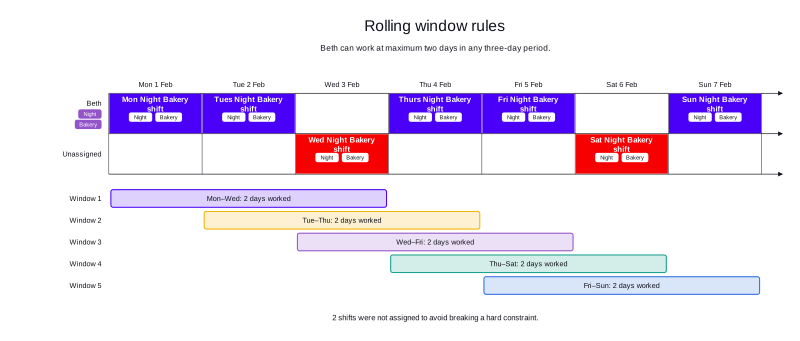
This example has one employee, Beth. Beth can work at most two days in any three-day period. The schedule has one shift per day for seven days.
-
Input
-
Output
Try this example in Timefold Platform by saving this JSON into a file called sample.json and making the following API call:
|
curl -X POST -H "Content-type: application/json" -H 'X-API-KEY: <API_KEY>' https://app.timefold.ai/api/models/employee-scheduling/v1/schedules -d@sample.json{
"config": {
"run": {
"name": "Lesson 5: Rolling window rules"
}
},
"modelInput": {
"contracts": [
{
"id": "fullTimeContract",
"rollingWindowRules": [
{
"id": "mfullTimeContract",
"rollingWindow": {
"type": "DAILY",
"size": 3
},
"daysWorkedLimit": {
"daysWorkedMax": 2
},
"satisfiability": "REQUIRED"
}
]
}
],
"employees": [
{
"id": "Beth",
"contracts": [
"fullTimeContract"
],
"skills": [
{
"id": "Night"
},
{
"id": "Bakery"
}
]
}
],
"shifts": [
{
"id": "Mon Night Bakery shift",
"start": "2027-02-01T00:00:00Z",
"end": "2027-02-01T08:00:00Z",
"requiredSkills": [
"Night",
"Bakery"
]
},
{
"id": "Tues Night Bakery shift",
"start": "2027-02-02T00:00:00Z",
"end": "2027-02-02T08:00:00Z",
"requiredSkills": [
"Night",
"Bakery"
]
},
{
"id": "Wed Night Bakery shift",
"start": "2027-02-03T00:00:00Z",
"end": "2027-02-03T08:00:00Z",
"requiredSkills": [
"Night",
"Bakery"
]
},
{
"id": "Thurs Night Bakery shift",
"start": "2027-02-04T00:00:00Z",
"end": "2027-02-04T08:00:00Z",
"requiredSkills": [
"Night",
"Bakery"
]
},
{
"id": "Fri Night Bakery shift",
"start": "2027-02-05T00:00:00Z",
"end": "2027-02-05T08:00:00Z",
"requiredSkills": [
"Night",
"Bakery"
]
},
{
"id": "Sat Night Bakery shift",
"start": "2027-02-06T00:00:00Z",
"end": "2027-02-06T08:00:00Z",
"requiredSkills": [
"Night",
"Bakery"
]
},
{
"id": "Sun Night Bakery shift",
"start": "2027-02-07T00:00:00Z",
"end": "2027-02-07T08:00:00Z",
"requiredSkills": [
"Night",
"Bakery"
]
}
]
}
}
To request the solution, locate the ID from the response to the post operation and append it to the following API call:
|
curl -X GET -H 'X-API-KEY: <API_KEY>' https://app.timefold.ai/api/models/employee-scheduling/v1/schedules/<ID>{
"metadata": {
"id": "ID",
"originId": "ID",
"name": "Lesson 5: Rolling window rules",
"submitDateTime": "2026-10-02T15:48:24.629544935Z",
"startDateTime": "2026-10-02T15:48:35.13037548Z",
"activeDateTime": "2026-10-02T15:48:35.243452002Z",
"completeDateTime": "2026-10-02T15:49:05.807965019Z",
"shutdownDateTime": "2026-10-02T15:49:05.807969127Z",
"solverStatus": "SOLVING_COMPLETED",
"score": "0hard/-2medium/0soft",
"tags": [
"system.type:from-request",
"system.profile:Standard profile"
],
"validationResult": {
"summary": "OK"
}
},
"modelOutput": {
"shifts": [
{
"id": "Mon Night Bakery shift",
"employee": "Beth"
},
{
"id": "Tues Night Bakery shift",
"employee": "Beth"
},
{
"id": "Wed Night Bakery shift"
},
{
"id": "Thurs Night Bakery shift",
"employee": "Beth"
},
{
"id": "Fri Night Bakery shift",
"employee": "Beth"
},
{
"id": "Sat Night Bakery shift"
},
{
"id": "Sun Night Bakery shift",
"employee": "Beth"
}
],
"employees": [
{
"id": "Beth",
"metrics": {
"assignedShifts": 5,
"durationWorked": "PT40H"
}
}
],
"generatedShifts": []
},
"inputMetrics": {
"employees": 1,
"shifts": 7,
"pinnedShifts": 0,
"mandatoryShifts": 7,
"optionalShifts": 0
},
"kpis": {
"assignedShifts": 5,
"unassignedShifts": 2,
"disruptionPercentage": 0,
"activatedEmployees": 1,
"assignedMandatoryShifts": 5
},
"run": {
"id": "ID",
"originId": "ID",
"name": "Lesson 5: Rolling window rules",
"submitDateTime": "2026-10-02T15:48:24.629544935Z",
"startDateTime": "2026-10-02T15:48:35.13037548Z",
"activeDateTime": "2026-10-02T15:48:35.243452002Z",
"completeDateTime": "2026-10-02T15:49:05.807965019Z",
"shutdownDateTime": "2026-10-02T15:49:05.807969127Z",
"solverStatus": "SOLVING_COMPLETED",
"score": "0hard/-2medium/0soft",
"tags": [
"system.type:from-request",
"system.profile:Standard profile"
],
"validationResult": {
"summary": "OK"
}
}
}modelOutput contains the schedule with Beth assigned to five shifts out of the seven available. Wed Night Bakery shift and Sat Night Bakery shift remain unassigned, which gives a score of 0hard/-2medium/0soft.
Approaching other rolling window rules
The other rolling window rules follow a very similar approach. However, instead of specifying a daysWorkedLimit, you must specify the appropriate limit for the type of rolling window rule you are implementing. The limits are stated in the technical documentation for the specific rule:
-
Shifts worked (regardless of time in those shifts)
-
Days worked (regardless of time or shifts on those days)
-
Weekends worked (regardless of time)
Conclusion
In this lesson, we learned:
-
How a rolling window rule applies limits like a moving filter over the schedule.
-
How to implement a rolling window rule in Timefold.
-
How to implement a limit on days worked in a rolling window rule.
-
How to represent limits on averages using rolling window rules.
-
The differences and similarities between rolling window rules and period rules.
-
How to approach other types of rolling window rules, which are implemented in a very similar way to the days worked limit.
Next
-
See the full API spec, try the online API, or start a free trial.
-
Go back to the Lessons overview to choose a different lesson to continue with.